SalesMate + Accounts Menu

Accept Payment

Refund To Customer

Supplier Payment Settlements

Accept Payment

This menu is used to accept payment from the customer. When you click on Accept Payment, a dialog box will appear as Fig 1. When a customer is selected, the function loads all the default entries from the database. Specify the Payment received for a selected customer and click Accept button. A dialog box will appear as shown in Fig 2. When the payment received is greater than balance a dialog box will appear as Fig 3. If you click on yes button, the balance will be displayed as a negative value, otherwise no change occurs.

The shortcut Key for Accept Payment is Shift +A
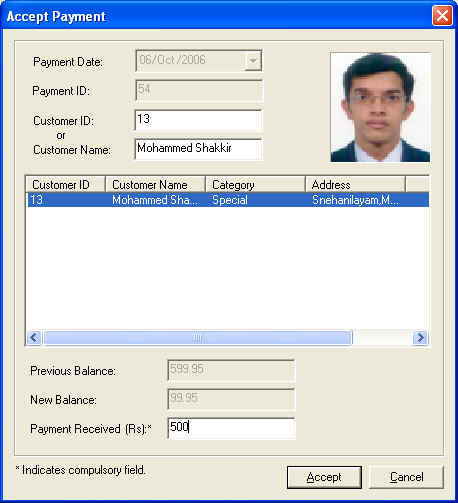
Fig1: Accept Payment Screen
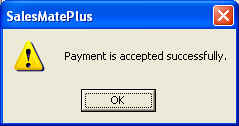
Fig 2: Payment Accepted Screen
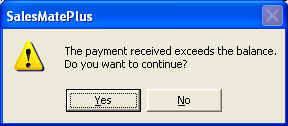
Fig 3: Message for confirmation

Refund To Customer

This menu  is used to refund the amount to the customers at the time of canceling sales and transaction etc. When you click on Refund To Customer menu, a dialog box appears as shown in Fig 4. Select one customer and refund the amount to that customer, then click return.  A dialog box appears

as shown in Fig 5.
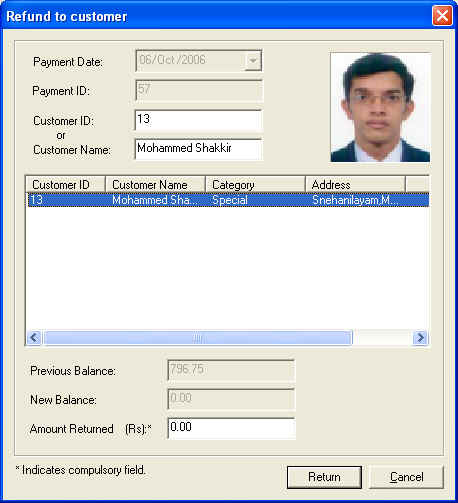
Fig4: Refund to Customer Screen
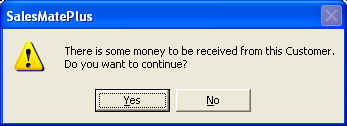
Fig5: Message for confirmation 

Supplier Payment Settlements

This menu is used to handle payments with the supplier. When you click on Supplier Payment settlements , a dialog box will appear as Fig 6 . When a supplier is selected, the function loads all the default entries from the database. Specify the Payment done to the selected supplier and click Accept button. A dialog box will appear as shown in Fig 7 .

Fig6: Supplier Payment Screen 
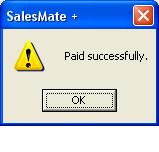
Fig7: Information after successful Payment   

ACCOUNTS MENU | FAQ

+What is the Accounts Menu in SalesMate + and what functions does it include?
The Accounts Menu in SalesMate + GST Billing Software provides tools to manage customer and supplier accounts, view balances, generate outstanding reports, record deposits and withdrawals, handle receipts and payments, and more — helping you maintain accurate bookkeeping records and clear account status.
+How do I view outstanding balances for customers and suppliers?
You can use the Customer Outstanding Report and Supplier Outstanding Report options in the Accounts Menu to see current balances owed by customers or owed to suppliers. These reports help you track receivables and payables and plan follow-up actions efficiently.
+What are the Deposit and Withdrawal features used for?
The Deposit feature is used to record and track money received into your business accounts (such as bank or cash receipts), while the Withdrawal feature records money paid out (such as expenses or payments to suppliers). These entries help maintain accurate cash flow and account histories
+Can I print account reports from the Accounts Menu?
Yes. The Accounts Menu includes options to generate and print detailed reports such as customer and supplier outstanding reports, receipts and payments statements, cash and bank book reports, and balance summaries — enabling you to maintain clear financial records and share them with stakeholders.

Copyright © KTS InfoTech 2004 - 2026. Site Developed Using KTS WebCloud
Go to SalesMate + Facebook PageGo to SalesMate + Twitter PageGo to SalesMate + Youtube Video ChannelGo to SalesMate +  BlogGo to SalesMate + Instagram Page